
To configure you check in screen to integrate with TPP SystmOne you need to log into the Engage Client
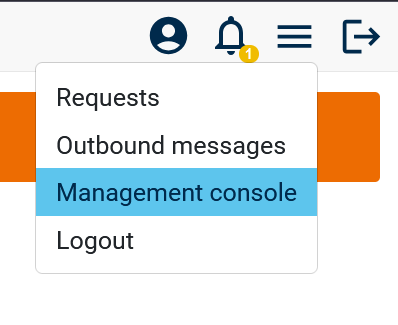
Once logged in you can access the management console from the top right burger menu
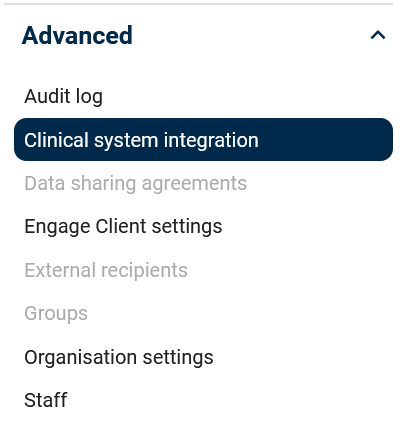
At the bottom of the left hand menu, you'll see the "Advanced" option, under there click "Clinical System Integration"
Then click across to the "Engage Agent" page
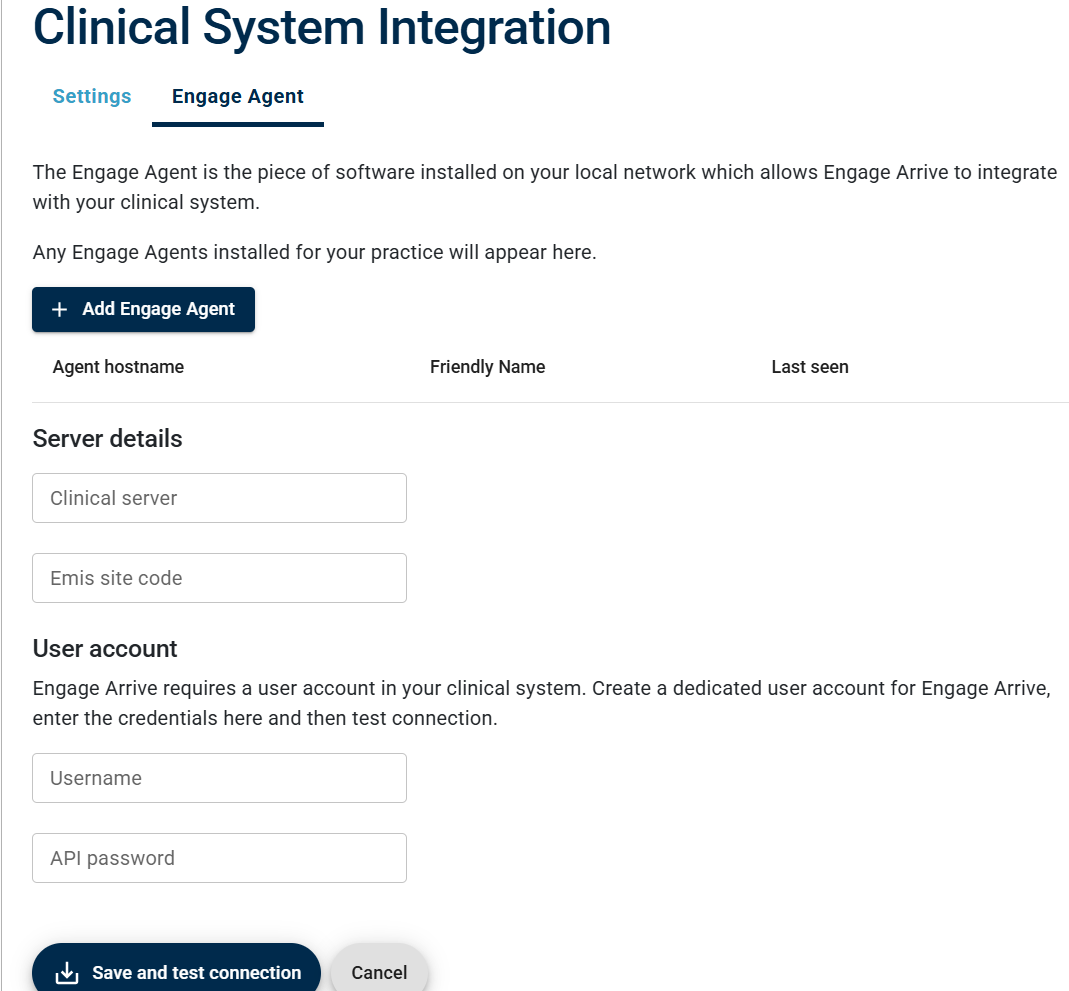
To activate the agent, click "Add Engage Agent" and enter the 4 digit code when prompted.
If you haven't installed the agent yet, see the guide HERE for more details.
Then finally click "Save and test connection"
This will cause the agent/s to reach out to SystmOne to activate the connection, if your setting up on the PC where the agent is installed, make sure SystmOne is logged in, you'll get a pop up appear within SystmOne asking yhou to approve the connection, click okay on both boxes (the big and small ones) to confirm the connection.
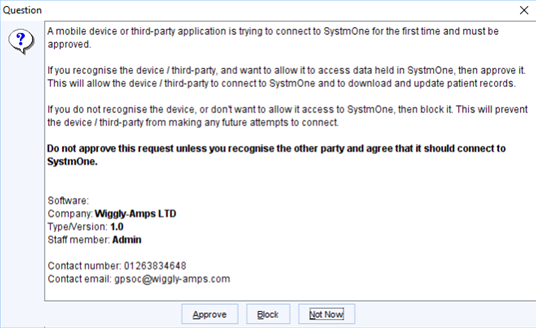
(Click approve)
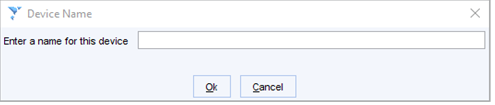 (This one will auto-populate just click okay)
If you're setting up the management side on another PC, you'll have to move across to where the agent is install to activate the connection.