
The Engage Agent & SystmOne Gateway
To save your staff valuable time in the morning, you can now use your SystmOne Gateway PC to run your Engage Arrive agent on your check in screen. This means you will no longer need to log in on the screen in the morning.
To do this you will need to install the Engage Agent onto the Gateway PC. The Agent will need to be installed for all users, so that regardless of who logs the Gateway in, the Agent will run and enable the use of the check in screen.
Your local IT should have the appropriate admin rights to install the Agent for all users on the Gateway PC, you can provide them with the steps below to download, install and configure the Agent.
Installing the Engage Agent
You can download the agent HERE
Once you download the agent simply naviate to your downloads folder and double click to run the installer
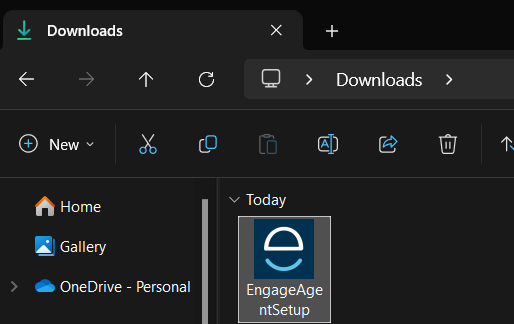
After the installation the Agent will automatically open a web browser, and navigate to the management page, if that doesn't open, you can copy and past "localhost:4648" into any web browser and press enter.
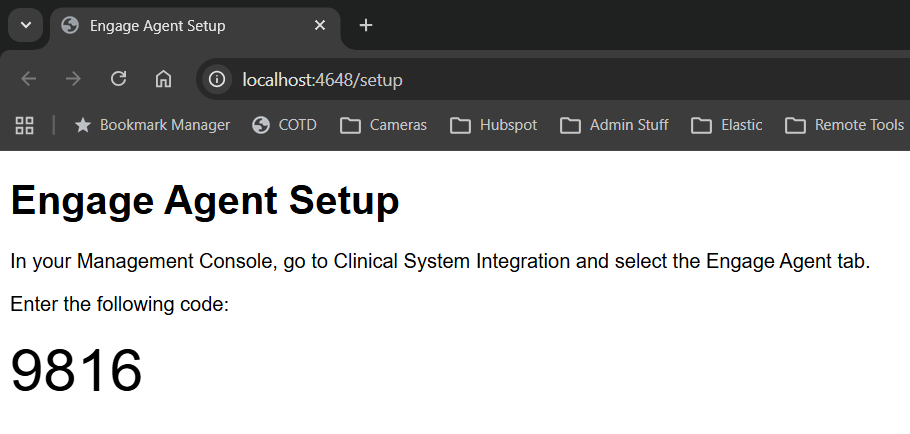
The setup page will display a 4 digit code, this is used to pair the agent up via your management console.
Activating the Engage Agent
To activate the you will need to use the Management Console inside the Engage Client.
For instructions on accessing the Management Console please see our guide here
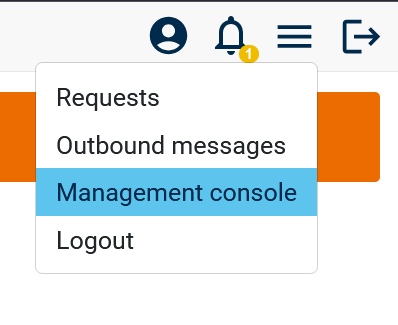
Once logged in you can access the management console from the top right burger menu
At the bottom of the left hand menu, you'll see the "Advanced" option, under there click "Clinical System Integration"
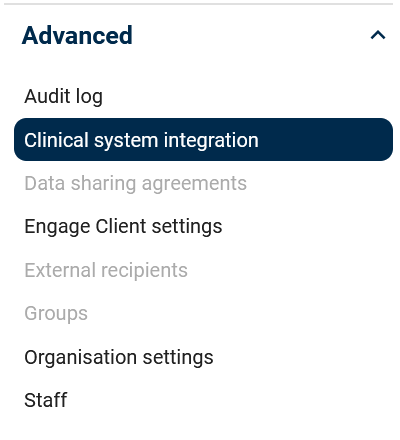
Then click across to the "Engage Agent" page
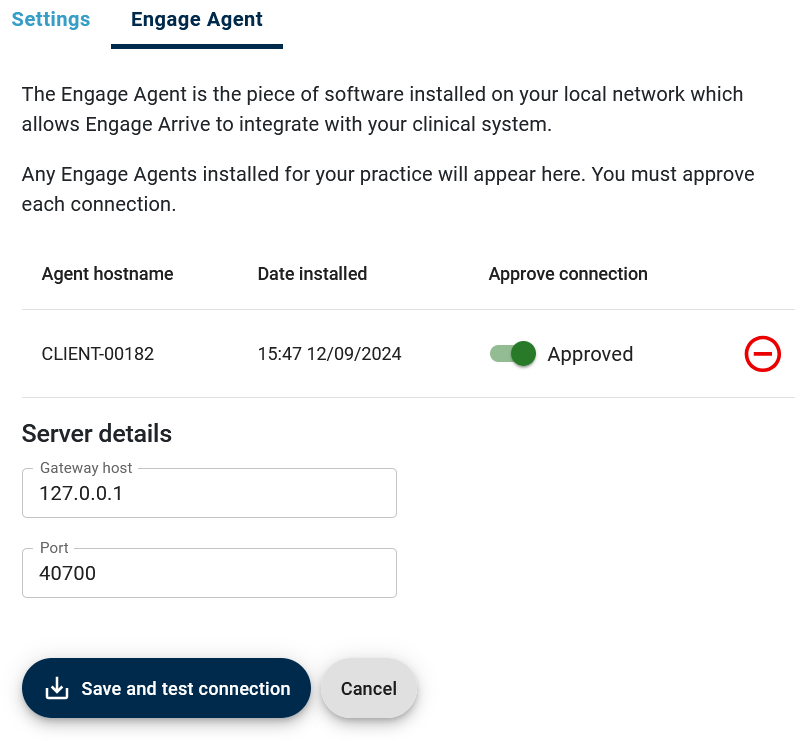
On this page you should see a list of any installations of the Engage Agent, if you haven't installed the agent yet, see the guide HERE for more details.
First click the toggle button to approve the connection for each agent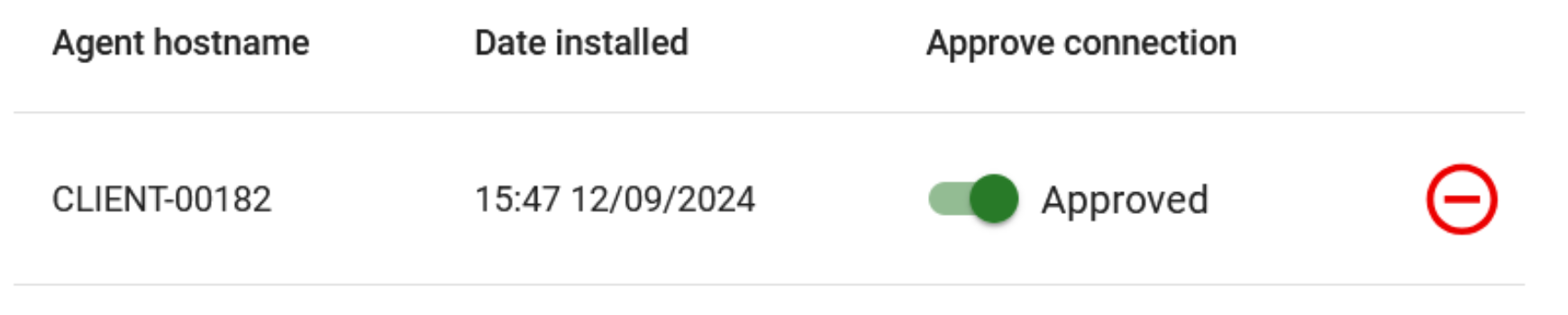
Then finally click "Save and test connection"
This will cause the agent/s to reach out to SystmOne to activate the connection, if your setting up on the PC where the agent is installed, make sure SystmOne is logged in, you'll get a pop up appear within SystmOne asking you to approve the connection, click okay on both boxes (the big and small ones) to confirm the connection.
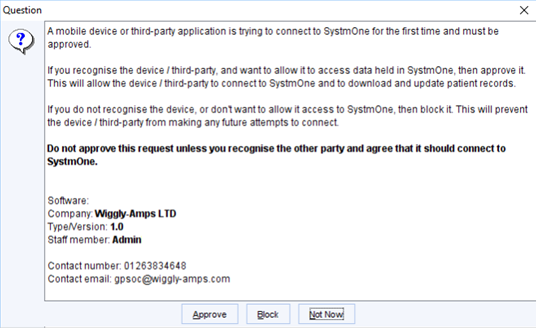
(Click approve)
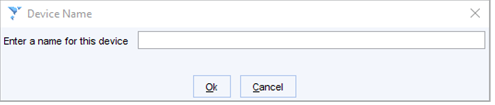 (This one will auto-populate just click okay)
If you're setting up the management side on another PC, you'll have to move across to where the agent is install to activate the connection.